
Building Reporter/Data Entry
Building Reporter Data Entry Instructional Guide
Building reporters (BR) are generally assumed to be the individuals that will be creating, gathering the necessary evidence, updating and completing the application. This document will step those with this role through the process of creating and completing an application.
Instructions for a Building Reporter to create a New Program Application
There are three basic types of CTE program applications that can be created.
- Regular High School Application
- Early Middle College Application
These two applications require the High School New Program Application Data Entry role.
- Regular Middle School Application
This application requires the Middle School New Program Application Data Entry role.
Access the New Program Application
In order for a building reporter to work on new program applications, they must be granted authorization to the New Program Application functionality with one of these roles: High School New Program Application Data Entry or Middle School New Program Application Data Entry. Once you have that role, you will have the New Program Application menu item available to you within CTEIS.
Viewing Existing Program Applications

Navigating to the New Program Application will present the BR with the NPA Application List Page. On this page they will see a listing of all applications they have access to view. As a building reporter, this is typically any applications they have created or that have been created in a building they have access to. This list will display each application and its details and status. An application can be opened for editing by clicking on the Open link or selecting it and clicking the Edit Application button.
Create a New Program Application
To initiate a new program, click on the “New Application: HS” or “New Application: MS” for a new High School application or a Middle School application, respectively. Keep in mind the BR must be granted authorization for either type ahead of time. A high school application will provide you the choice to create a “Regular” or “Early Middle College” program application, with the required data and evidence being different. Middle school program applications will also vary compared to high school applications.
The Application form will open and present several sections for completion to provide the necessary information and evidence for the new program. Each section is viewed and edited on a separate tab and must be marked Complete when satisfactorily completed. The sections are as follows.
Section Requirements for each program type:
| High School Regular | High School EMC | Middle School Regular |
Program Information
This section requires the identification of the type of program (regular or EMC), the CIP Code, and the operating building (which must be previously entered in CTEIS) where it will be conducted.
The Applicant is the person logged into CTEIS creating the application and the Fiscal Agency Level 5’s are determined by the operating building. The CTE Building contact is determined from the State of Michigan Department of Education, Education Entity Master database. If necessary, you may provide additional contact information as relevant.
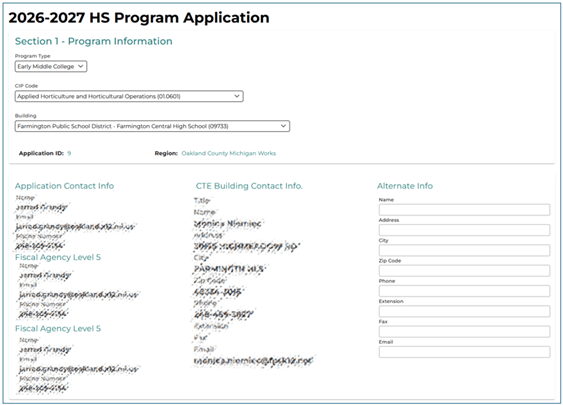

High school programs may exist in a contracted building. If you are applying for a program in a contracted building, you will be required to enter in the Alternate contact information.
Section C01 and C02
Section C01 and C02 provide evidence for Teacher Certification and Teacher Professional Development and thus are grouped together.
- For all program types, you will need enter the prospective staff that will be conducting the program courses. Use the “Add Program Staff” button to add staff providing instruction from the list of staff currently in CTEIS. If necessary, use the “Create New Staff Member” button to create a new staff member that has not been entered into CTEIS.
- For each staff member providing instruction, you will need to provide relevant certification information and Professional Development evidence. Follow the instructions on the screen as presented.

You will need to provide documentation as evidence for parts of this section. Upload documents as instructed. Some requirements only expect one document, and thus additional uploads will overwrite the initial document. Others will allow for multiple documents. Note each part will indicate how many documents are expected. All documents must be provided before this section may be marked completed.

NOTES ABOUT FILES:
- Only PDF, Word documents, and Excel Spreadsheets will be permitted.
- 5MB Files will be the upper limit on file sizes.
C03: Program Advisory Committee

All program types require documentation of a Program Advisory Committee. Follow the instructions on the form and provide the necessary documentation and assurances. Be sure to note the links on the page for access to expected templates and documents.
C04: Program Delivery
All program types require documentation for the Program Delivery. Follow the instructions on the form and provide the necessary documentation and assurances. Be sure to note the links on the page for access to expected templates and documents.

C05: Work-Based Learning (High School Only, Not required for Middle School)
Follow the instructions on the form and provide the necessary documentation and assurances. Be sure to note the links on the page for access to expected templates and documents.

C06: Student Leadership

All programs require documentation and assuance for Student Leadership. Follow the instructions on the form and provide the necessary documentation and assurances. Be sure to note the links on the page for access to expected templates and documents.
C08: CTE EMC Secondary-Postsecondary Linkage (Only HS EMC applications)
Early Middle College High School program applications need to provide evidence of a 5-year program of study. Follow the instructions on the form and provide the necessary documentation and assurances. Be sure to note the links on the page for access to expected templates and documents.

Assurances
Follow the instructions on the form and provide the necessary documentation and assurances. Be sure to note the links on the page for access to expected templates and documents.


Completing each section and viewing the log and completing the application.
Each section’s information and uploaded documents can be saved at any point and continued at a later date if necessary. This is done by clicking the save button at the bottom of the of the section’s screen.
Further, comments or other log entries can be entered at anytime during the application process. They will be associated with the section they are entered in and the current user. In this manner, you can leave notes, comments or questions to additional participants. It will also be used, as discussed below, to indicate issues or progress of an application.

Each section must have all the questions/assurances responded to as well as providing all the documentation evidence required before it can be marked as completed. Once that is done, it can be marked complete.
When a section of the application is completed, click the “Mark Complete Section” button at the bottom of the form, after providing a required comment. This will mark this section complete, note it in the log, halt any further editing, and work towards advancing the progress of the application.

After all sections are marked complete, navigate to the Application Overview from the application dashboard on the right. Review all the entries of the application and when all is correct, provide a comment and click the “Mark Compete Application”. This will mark the application complete and halt any further editing This will send an email to the CEPD Administrator to let them know it is ready for review.
The application log is provide to track all events associated with the application including who and when each section was completed, any returns, or other comments made. Users can review and filter the log as necessary to review relevant communications.
The right side dashboard will show the status of each section and provide a link to go to each section or the Application Overview. This dashboard will also display the “Return to Application List” button that will return you to the home Application List.
Application Overview
The Application Overview will display all the sections at once with all the input information and the all the document names listed that have been imported. The document links can be used to review the documents at anytime.

Dealing with returned sections
If, after the building reporter completes the application, the CEPD Administrator finds any issue that must be remediated, they will return the specific sections back to the building reporter. The building reporter will be notified by email for such an occurrence and will be able to see the application that has the issue in the Application List Status bar. By selecting the application for editing, they can view the dashboard to see which section needs review.

Once the issues has been addressed, the building reporter then marks the section complete again, completing the application and resubmitting to the CEPD Administrator.